How to send a custom ringtone to a friend's iPhone
Published October 30, 2026 · 5 min read
An iPhone has no “send ringtone” button. What you can send is the sound as an audio file, and your friend then has to turn it into a ringtone on their own phone, which takes a minute.
This guide shows what to send, how to send it, the steps for your friend on iOS 26 and on iOS 17–18, and the cases where it will not work.
Can you send a ringtone from one iPhone to another?
Not as a ready-made ringtone. A custom ringtone lives in your phone’s tone list, and there is no way to hand that entry to someone else. What you can share is the audio file it came from, and the recipient adds it to their own list.
Two limits to know first. The sound must be under 30 seconds, because iOS will not accept a longer one as a ringtone. And a song from a streaming service is usually protected, so a file exported from it cannot be used.
What should you send?
Send an audio file under 30 seconds, ideally an M4A, M4R or MP3. These are the formats the guides we read name as working.
- Send the file you made, not a link to a video or song.
- Use AirDrop if you are in the same room. Messages and Mail also work for sending a file; the file arrives as an attachment your friend can save to Files.
- A tone bought from Apple’s Tone Store is tied to the buyer’s Apple Account, so do not count on forwarding it. Your friend can usually download their own purchases again.
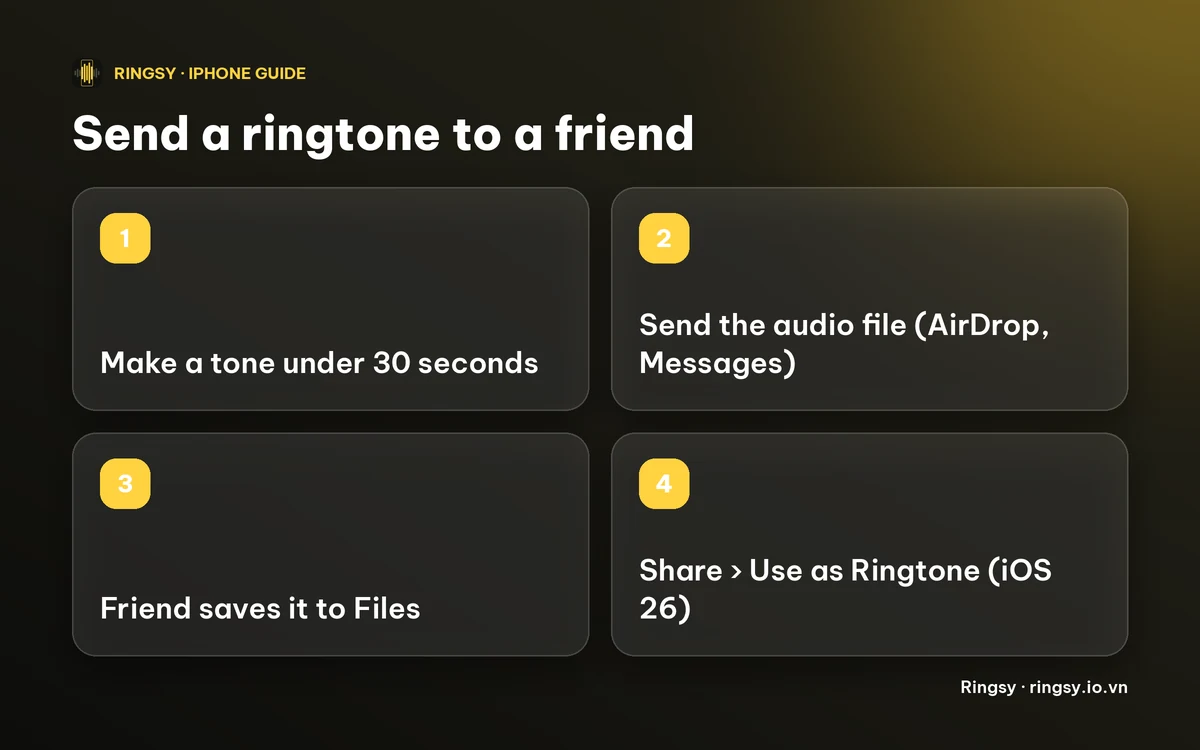
How does your friend add it on iOS 26?
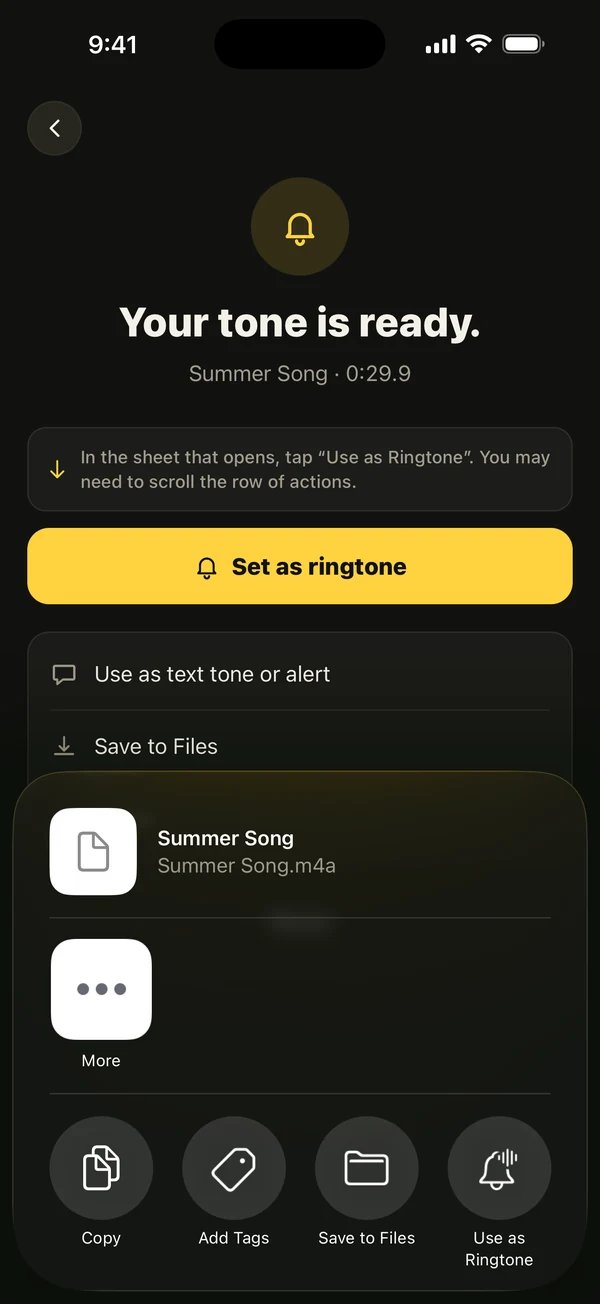
On iOS 26 and later, the share sheet has a Use as Ringtone action for audio files, so no GarageBand is needed.
- 1Save the received file to the Files app if it is not there already.
- 2Open it in Files, tap Share, then tap Use as Ringtone. If you do not see it, scroll the row of actions or tap More.
- 3Go to Settings › Sounds & Haptics › Ringtone and pick the new tone.
Reports say this action is sometimes slow to appear. We could not confirm that a file opened straight from an AirDrop notification offers it, so saving to Files first is the safer route.
What if your friend is on iOS 17 or 18?
Before iOS 26 there is no Use as Ringtone action, so the file goes through GarageBand: import the audio, export it as a ringtone and pick it in Settings. Our guide on making a ringtone without a computer walks through it.
Menu names change between iOS versions, so if a step looks different on your friend’s phone, search Settings for “Ringtone”.
How Ringsy helps
Ringsy has a Send to a friend action on its export screen. It shares the finished tone as an M4A, together with a short line, “Made with Ringsy”, and a link to the App Store page. The line is added for messaging apps; it stays out of AirDrop, Files and Use as Ringtone, so it never ends up inside the sound.
If your friend also has Ringsy, opening the received tone in it, from Messages, Mail, AirDrop or Files, goes straight to the editor, so they can trim it or change it before setting it.
Sending needs the tone to be exported. The free plan includes two exported ringtones; Ringsy Unlimited is a one-time purchase with no subscription. Your friend does not need Ringsy, only the file.
Quick facts
- An iPhone cannot send a ringtone itself; send the audio file.
- Keep it under 30 seconds. Protected songs cannot be used.
- iOS 26 and later: Files › Share › Use as Ringtone. iOS 17–18: GarageBand.
- Your friend picks the tone under Settings › Sounds & Haptics › Ringtone.
Frequently asked questions
- Can I send a custom ringtone to another iPhone?
- Not as a ringtone. Send the audio file (under 30 seconds) by AirDrop, Messages or Mail, and your friend adds it to their own tone list.
- How does my friend turn the file into a ringtone?
- On iOS 26 and later: save it to Files, tap Share, then Use as Ringtone. On iOS 17–18 they import it into GarageBand and export it as a ringtone.
- Does my friend need Ringsy?
- No. They only need the audio file. If they do have Ringsy, a received tone opened in it goes straight to the editor.
- Can I send a song from Spotify or Apple Music as a ringtone?
- Usually not. Streaming files are protected, so an exported copy cannot be used. Use a file you own or a sound you recorded.